
All telehealth visits take place via the MYIO Portal. You can access the portal on a browser here:
…or via the MYIO App on mobile that is available for download:


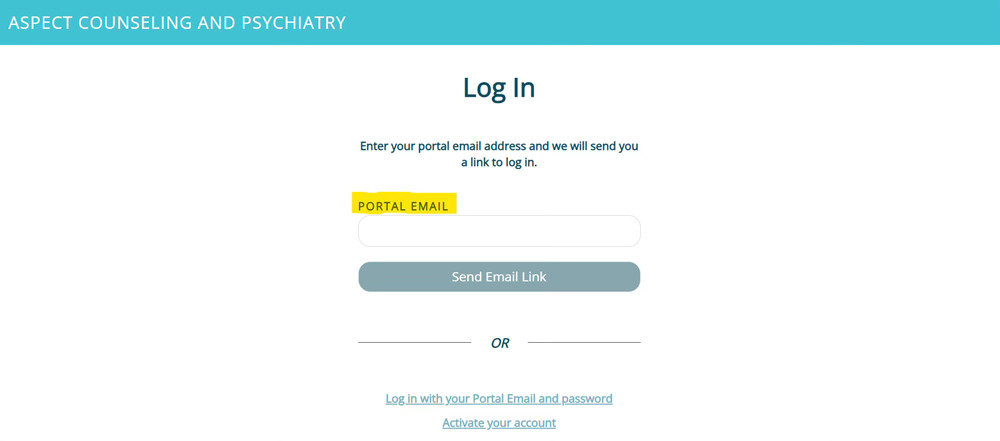
When you access the MYIO Portal you have two options for logging in. The first option below allows you to enter your email address and click the “Send Email Link” which will then send you an email for you to select which type of device you are using to login. Once you select the device type, it will automatically log you in.
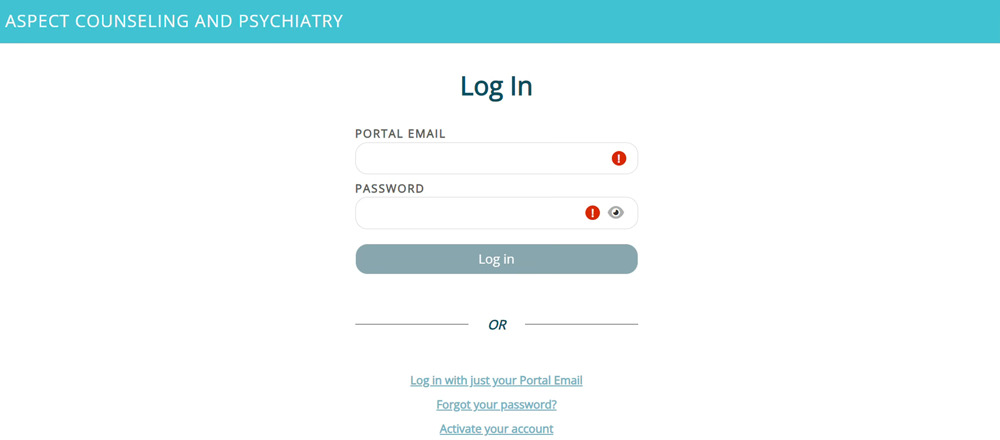
The second option is to login with your email address and password that you used to set up your MYIO portal.
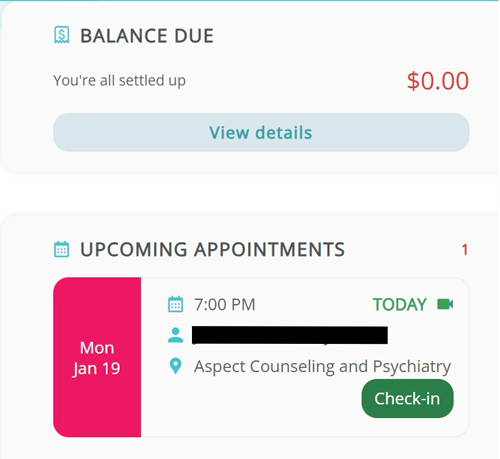
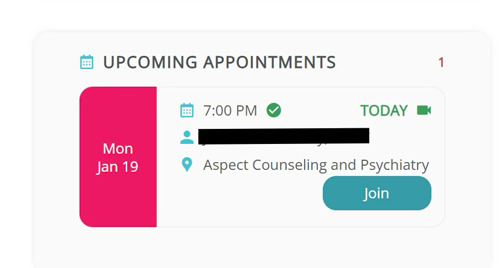
Once you login, you will see your next upcoming appointment on the main screen. If you do NOT owe a copay, you will see a green tab that says “check-in”:
After you click on the “Check-In” button:
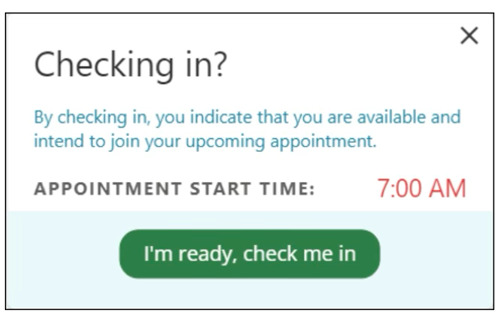
Click the “I’m ready, check me in” button and then you will return to the main screen where you will click the “Join” button. This will open the telehealth window for your session to begin:
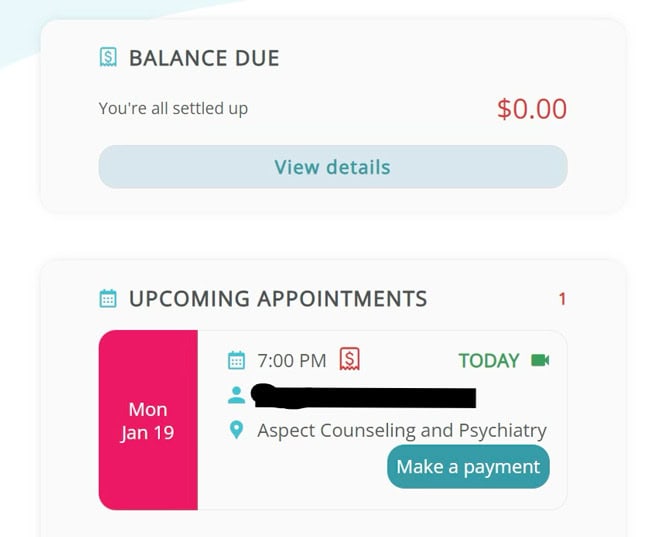
If you DO owe a payment for the appointment, you will see a “Make a payment” button:
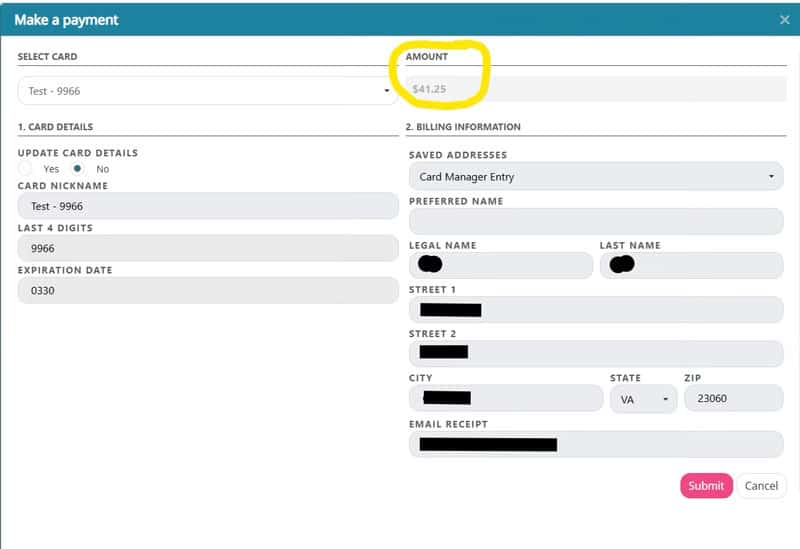
Once you click on the “make a payment” button it will open a screen where you can either use a card on file that you have saved in MYIO or manually enter a credit card to make the payment. Please note that you cannot edit or change the amount due for the appointment (circled in yellow below). You must make the payment amount shown. If you believe this amount is inaccurate you will need to contact the office for assistance. To prevent delays with starting your appointment, you can make the payment due and then contact the office to discuss adjustments if you believe they are needed.
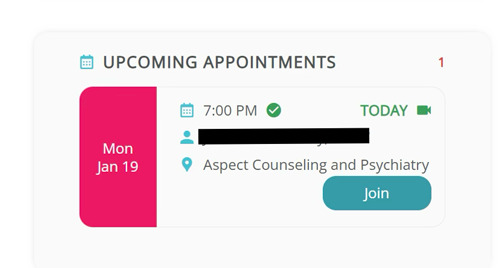
Once you make your payment, you will return to the main screen where you will click the “Join” button to start your session:
Our Electronic Medical Record, Valant, will not subtract a credit from the amount owed for a telehealth appointment unless the credit is equal to or greater than the amount owed for the appointment. If your portal shows you have a -$10.00 credit balance, but a $25.00 copay you will still be prompted to pay the $25.00. You may call our office to request a refund of any credit amount showing in your MYIO patient portal.
Our system will not let you bypass payment. If you owe a payment, you must make that payment in order for the session to start. If you believe the amount owed is incorrect, you must call the office to discuss this.
No, there are no links for the appointments. They can only be accessed via the MYIO Portal. Providing you have signed up for it, you will receive appointment reminders two days before your appointment and a second reminder 3 hours before the appointment.
You can try logging out and logging back in. If that doesn’t work, please call our office or your provider directly.
We are not currently using secure messaging via the MYIO Portal. Please call our office or email your provider instead.
If you are using a computer, please make sure you are using either Google Chrome or Microsoft Edge as these are the only two browsers that Valant supports. If you are using a phone or table, please make sure you are trying to login to the MYIO app.